 ★ 4.6
Emotion-driven Sprunki mod blending rhythm, mood, Jevin’s haunting soundscape.
 ★ 4.1
Manage a baby daycare in Sprunki Babies Daycare Interactive (Updated).
 ★ 4.8
Build a cheerful party loop, then trigger the horror version.
Click to Play
It is free!
Please be patient while game is loading
 ★ 4.1
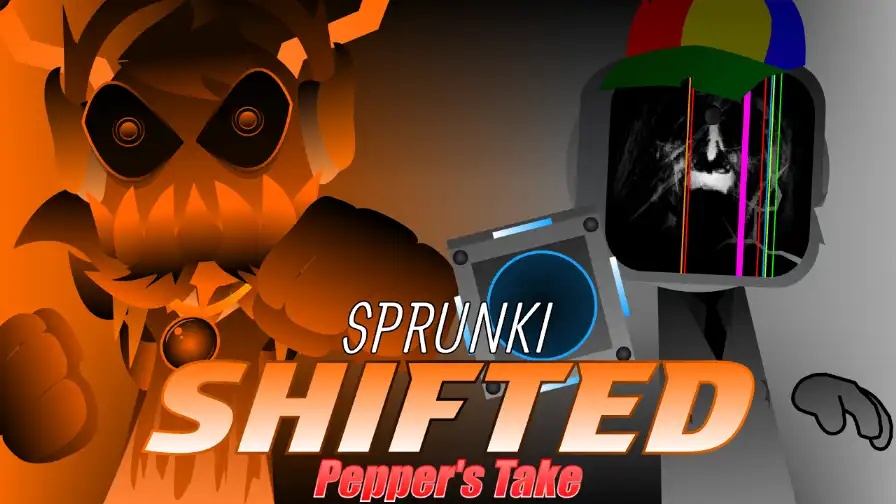
Trigger a Sprunki Shifted Pepper's Take horror phase after you build a mix.
 ★ 4.9
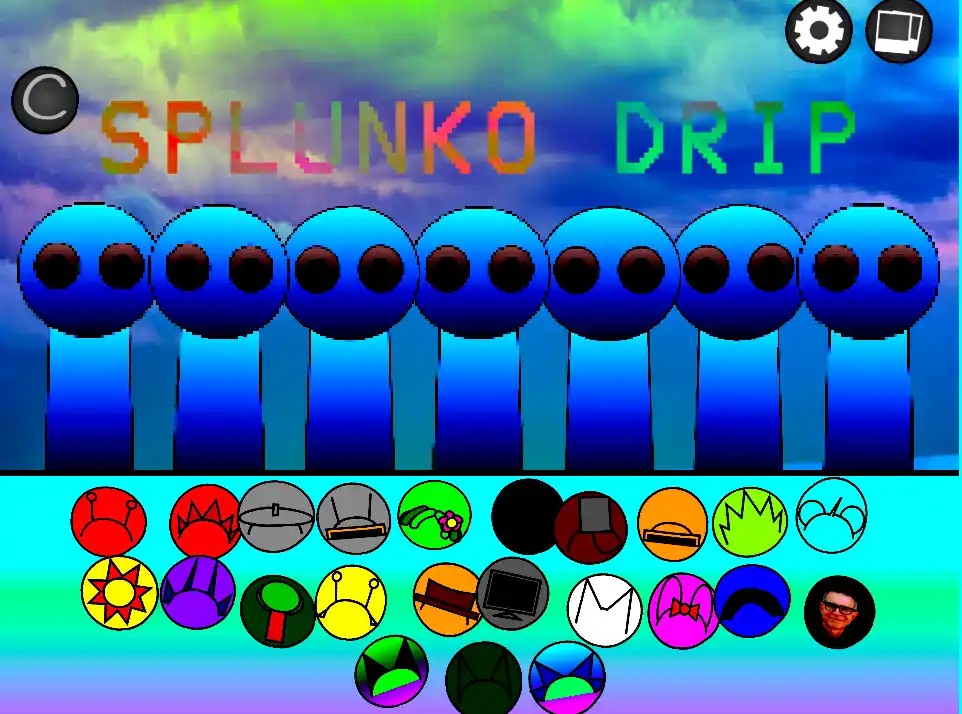
SPLUNKO DRIP serves hip-hop mixing in your browser, with a hidden horror twist.
 ★ 4.1
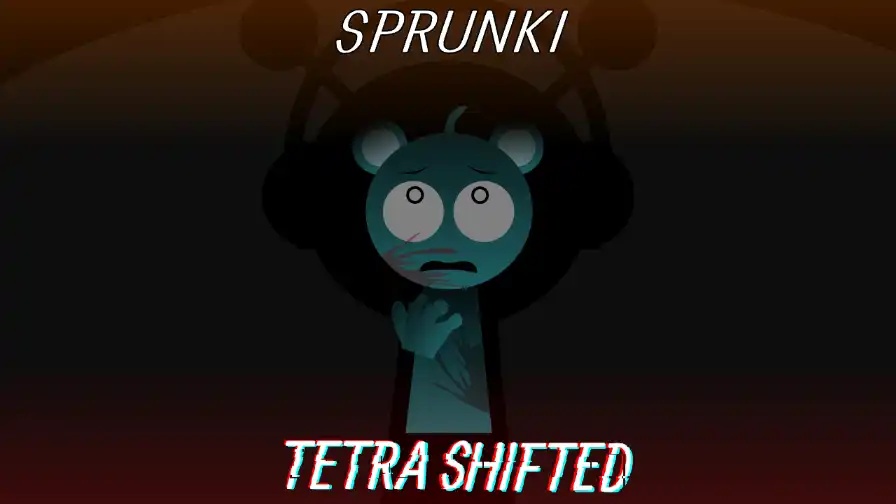
Sprunki Tetra Shifted pairs track building with an eerie survival horror mystery.
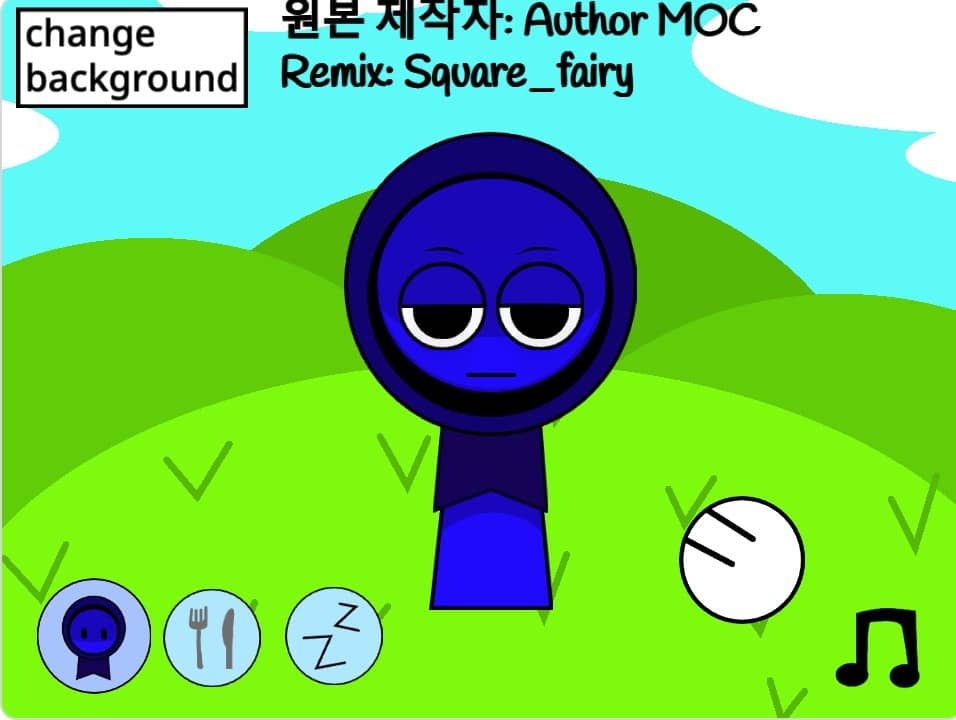
Interactive Jevin is a free browser toy in which you prod a cartoon character, change his outfit, and send him off to sleep. Tap various spots on his face to alter how he looks, open the kitchen and the bedroom, and swap out his meals. A music button lets you turn the background tune on or off while you play. Hold his body down and his hands pop out. The game costs nothing and needs no download. It all runs in your browser, so you can begin within seconds. Tiny animations react to each tap, and the two rooms offer more than one activity.
Open the page and wait a moment for the scene to show. You need no install, account, or download, since the game runs right in a browser tab on our site.
Tap or click on his eyebrows, eyes, mouth, cheeks, or forehead. Every spot brings up a different face, so you create a reaction one tap at a time and keep altering it.
Press your pointer against his body for a second and out come his hands. Let go and they go back. This shows that a hold behaves differently from a quick tap.
The fork and knife icon opens the kitchen. Inside, you can move objects around and hit the change button to replace his meal with another dish.
Press the ZZ button to get to the bedroom, then calm him with the blanket or the light. Sleep mode is a peaceful scene, not a challenge, so nothing can go wrong.
The hat button puts his hat on or removes it. The music note icon switches the background track on or off, letting you play with sound or in silence.
Many Sprunki mods have you pile sound loops onto a stage packed with characters. Interactive Jevin does the opposite. You get one character and a heap of small reactions to discover. Tap his eyebrows, mouth, eyes, or cheeks and his face shifts, while a hold on his body brings his hands out. The kitchen and the bedroom add props to move, dishes to swap, and a sleep mode you start with the blanket or the light. No clock runs and no move is wrong, so it plays like a calm, hands-on toy.
Yes. Our site lets you play at no cost in your browser. You do not need an account, a download, or payment, and the game opens in the tab as soon as the page loads.
You tap the character and hold him. A tap on any face part changes his expression, a hold on his body reveals his hands, and the icons open the kitchen and the bedroom, add his hat, and toggle the music.
Taps and holds make up the controls, which suit a touchscreen. A current phone or tablet browser able to run small interactive pages should handle it, but smooth play on every device is not guaranteed.
The fork and knife icon opens the kitchen. In there, you can shift items around and press the change button to give him a different dish, then switch it back.
Press the ZZ button to get to the bedroom. There, tap the blanket or the light. Both send him to sleep. Sleep mode stays calm, with no timers or goals.
Yes, and you decide. A music note icon switches the background music on and off, so you can leave the track playing or play in silence without touching any other setting.
Tap his eyebrows, mouth, eyes, cheeks, or forehead and his face changes. Every part works as its own control, so there are plenty of combinations to try.
A fork and knife icon takes you to a kitchen scene. There you shift items around and use the change button to swap his food. It behaves like a tiny sandbox.
Press the ZZ button and you enter the bedroom. The blanket or the light will send him to sleep. This is the calmest section and easy to trigger.
A music note icon switches the background track on or off. Keep the sound on as you tap around, or turn it off for quiet play.
Tap once to put his hat on and tap again to remove it. This small extra changes his look without leaving the scene.

Comments